Adobe Photoshop remains an essential program for designers, editors, and photographers worldwide. However, while handling this application, users often encounter unexpected errors. One such error message is “The operation could not be completed. An unknown operating system error has occurred.” It occurs during saving, opening, editing, or exporting files.
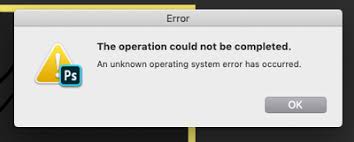
Well, this guide explains proven fixes that will surely help you fix it successfully.
To fix the Operation Could Not Be Completed, we recommend this tool:
This software will repair grainy, distorted, pixelated, blurry, greyed-out images and restores your prized memories effeciently. Now repair your corrupt or damaged photos in 3 easy steps:
- Try this Photo Repair Tool rated Great on Pcmag.com.
- Click Add File to add the photo you want to repair.
- Select Repair to start the repair process and save the repaired image on the desired location after the repair is done.
What Causes Photoshop Error the Operation Could Not Be Completed?
This Photoshop error triggers after updates, plugin changes, or file corruption. Besides, various reasons can cause this problem, including:
- The image file might be damaged.
- Incompatible plugins generate internal conflicts.
- Due to corrupted preference files.
- Insufficient permissions to access the file.
- Using an outdated version of Photoshop.
- Outdated graphics drivers often cause unexpected crashes.
So, now you must be thinking- What to do when an unknown error has occurred in Photoshop, right?
Just scroll down this webpage to know your answer!
How to Fix the Operation Could Not Be Completed. An Unknown Operating System Error Has Occurred in Photoshop?
Follow the approaches below carefully to tackle this situation:
Quick Fixes:
- Close & Relaunch the Photoshop App
- Disable the Problematic Plugins in Photoshop
- Resetting Photoshop Preferences File
- Update Photoshop to the Latest Version
- Checking Image File Integrity
- Run Adobe Photoshop with Administrator Permissions
- Update the Graphics Drivers
- Reinstall Photoshop as a Last Solution
- Recommended Solution- Use the Photo Repair Tool
Method 1- Close & Relaunch the Photoshop App
Since the error appears when trying to export the photo, try closing and reopening Photoshop to resolve it.
Method 2- Disable the Problematic Plugins in Photoshop
If the Photoshop error the operation could not be completed has occurred due to 3rd-party plugins installed in Photoshop, try temporarily disabling them.
Move plugin files outside the Photoshop plugin folder. They are typically found in the following locations:
- For Windows Users:C:\Program Files\Adobe\Adobe Photoshop [Version]\Plug-ins
- For macOS users:/Applications/Adobe Photoshop [Version]/Plug-ins
Go to these locations and disable the plugins one by one. Then, restart Photoshop & test the issue again.
Also Read: Fix Could Not Initialize Photoshop Because the Scratch Disks Are Full
Method 3- Resetting the Photoshop Preferences File
Resetting the preferences file solves many Photoshop issues quickly, including the error specified in this post. Simply follow the steps to do so:
- Navigate to Adobe Photoshop >> Preferences >> General.
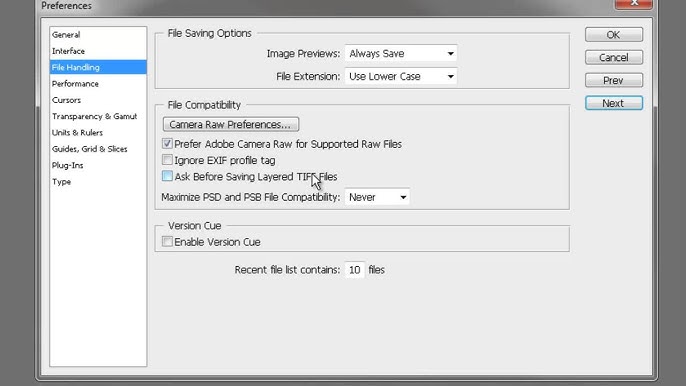
- Next, click on the “Reset Preferences on Quit.”
- After this, hit “OK” for the pop-up “Are you sure you want to reset preferences when quitting photoshop?”
- Now, quit Photoshop and after some time open it again.
Please note: A fresh preferences file is formed when you re-launch the program.
Method 4- Update Photoshop to the Latest Version
Running outdated software versions creates compatibility problems. Henceforth, always install the latest Photoshop updates to avoid such annoying errors.
To update the app, follow these steps:
- Open Photoshop.
- Go to the Help> Updates in a menu bar.
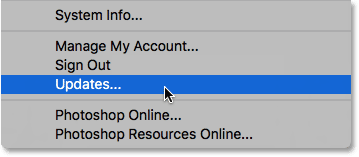
- Now, this will open a Creative Cloud app to initiate the update process.
- Hit on Update option to install updates and restart your system.
Method 5- Fix Photoshop Error the Operation Could Not Be Completed by Checking Image File Integrity
Sometimes, the problem lies with the image file itself. Therefore, open the file using another image viewer app like Paint, edit it, and then try to export from there.
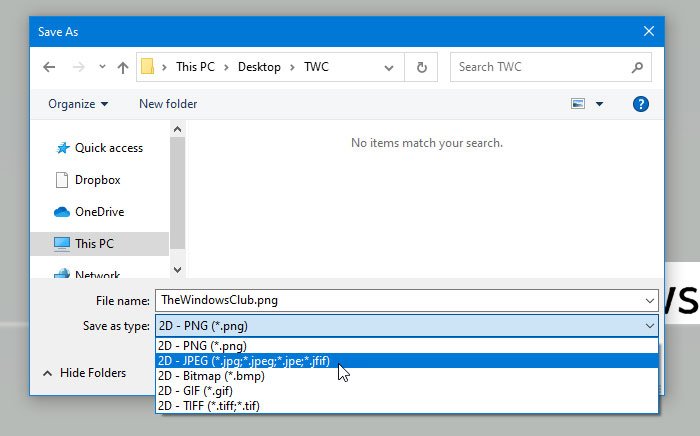
- Go to the search bar and type paint and click on it
- Navigate to File >> Open option to open a specific image.
- Again, click on File >> then Save as option >> choose output image format (JPG or PNG) & save the file to a new location.
Method 6- Run Adobe Photoshop with Administrator Permissions
As already mentioned in the causes section, a lack of necessary permissions to access the file may trigger the operation could not be completed Photoshop error. All you need to do is grant all the required permissions to access the files.
- Locate the Photoshop icon on the desktop >> right-click on it.
- Choose the Run as administrator.
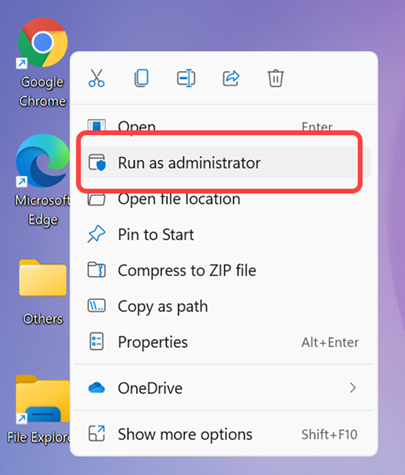
- This grant full access to system resources.
If this method fails, try the next one.
Method 7- Update the Graphics Drivers
Updating the graphics drivers is an excellent way. Many users have found this technique helpful in their cases to troubleshoot this warning message. So, you can also try this.
- Right-click on Start button >> select Device Manager.

- Next, expand the “Display adapters” section.
- Then, right-click on your graphics card (e.g., AMD, NVIDIA, Intel) >> click Update driver.
- Select the ‘Search automatically for drivers.’ Windows will immediately install updates if available.
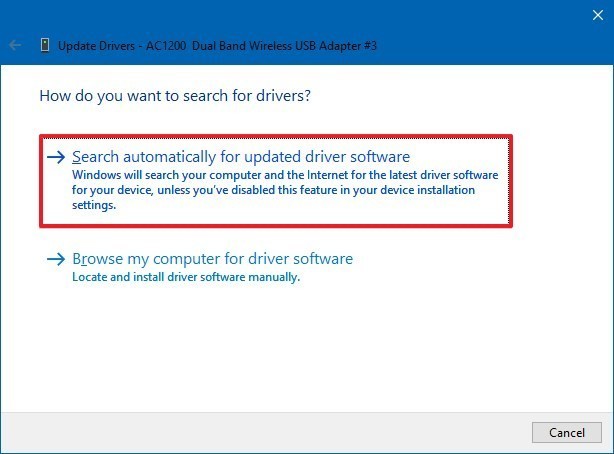
- Restart your computer after installation completes.
Also Read: Fixes For “Photoshop Parsing The JPEG Data” Error
Method 8- Reinstall Photoshop as a Last Solution
If none of the above solutions worked for you, try reinstalling the Photoshop.
- First, uninstall Photoshop app using Creative Cloud.
- Then, restart your system completely.
- Next, reinstall Photoshop using the latest version.
- This process removes corrupted installation files entirely.
- Finally, test the operation again carefully.
Recommended Solution- Use the Photo Repair Tool
Stuck with this Photoshop error due to photo corruption? If so, try the Photo Repair Tool. It is a progressive repairing software that has the capability to fix all kinds of errors & issues that have occurred due to corrupted image files.
Moreover, it repairs image files like BMP, TIFF, JPEG, CRW, PNG, RAF, GIF, NEF, CR2, ARF, etc.
Below you can see its more exciting features –
- Fixes all photos or raw image formats
- Completely trusted & available at an affordable price
- Compatible with both the Windows & Mac operating systems.
- 100% safe and secure.


* Free version of this program only previews repaired photos.
Simply download, install, and try this software by following the steps:
Step 1: Download, install and launch Photo Repair Tool on your computer. Click on 'Add File' to repair corrupt/damaged image files.
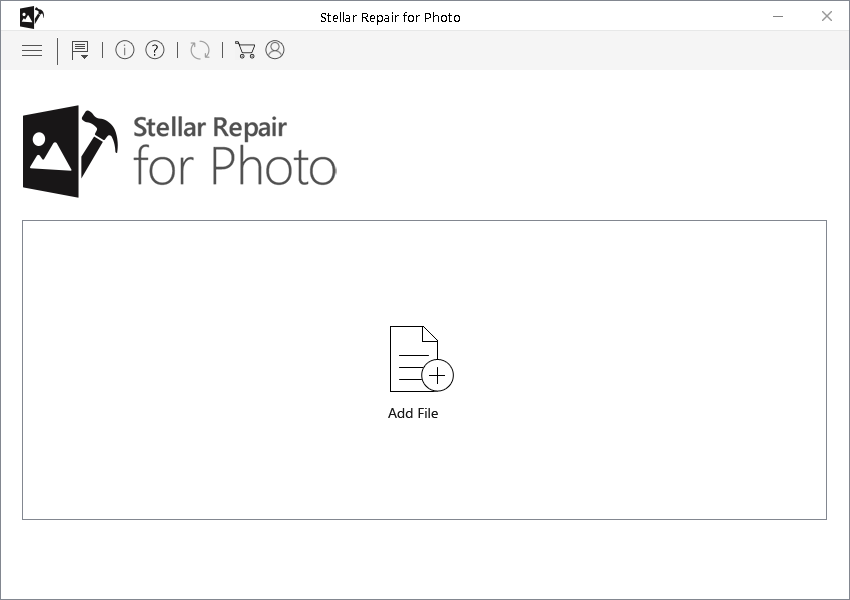
Step 2: You can then select the files for repairing. Next, click on 'Repair' to begin the repairing process.
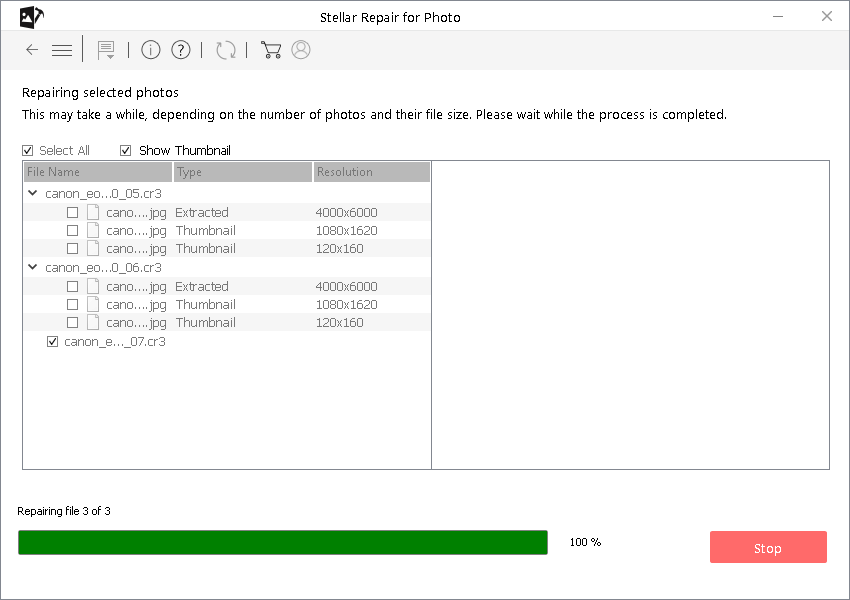
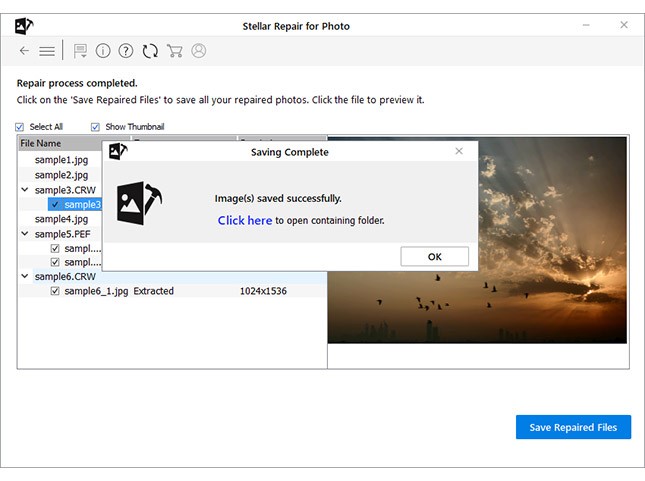
Step 3: Finally, click on 'Save' button to preview and save repaired images on your desired location on the computer.
Frequently Asked Questions:
To fix Photoshop file not opening problem, you should try re-opening the Photoshop. Simply, exit & close the program. Wait a minute and relaunch it. Now, you can try opening the file again.
Adobe Photoshop won't export your project due to incompatible, corrupt, or damaged files, low disk space, or glitches in layer effects.
To unlock Photoshop file to save, follow the below steps:
To delete all the Photoshop memory, navigate to Edit menu >> Purge and choose the item you need to purge. In case, you select All, it rub out everything off your RAM. How to Fix Photoshop File Not Opening?
Why Won't Photoshop Let Me Export?
How to Unlock Photoshop File to Save?
How to Clear RAM Memory In Photoshop?
Conclusion
So, now it’s time to end.
It is not a big issue that can’t be fixed. However, by applying the resolutions mentioned above, you can fix Adobe Photoshop the operation could not be completed. An unknown operating system error has occurred with ease. These fixes are very effective, and you don’t even require any tech skills.
Moreover, if you liked this post, do not forget to share it with others.
That’s all…

Taposhi is an expert technical writer with 5+ years of experience. Her in-depth knowledge about data recovery and fascination to explore new DIY tools & technologies have helped many. She has a great interest in photography and loves to share photography tips and tricks with others.