BMP files store bitmap images without compression. However, sometimes these files get corrupted due to unexpected interruptions like power failures, faulty storage devices, etc. As a result, images may not open correctly. Consequently, quick repair becomes essential for data recovery. In this helpful guide, I will discuss how to repair BMP files along with the major factors.
So, let’s get started…
To repair BMP file, we recommend this tool:
This software will repair grainy, distorted, pixelated, blurry, greyed-out images and restores your prized memories effeciently. Now repair your corrupt or damaged photos in 3 easy steps:
- Try this Photo Repair Tool rated Great on Pcmag.com.
- Click Add File to add the photo you want to repair.
- Select Repair to start the repair process and save the repaired image on the desired location after the repair is done.
Common Causes of .bmp Photo Corruption
BMP image corruption takes place due to causes that make the file inaccessible. So, the most common reasons are listed below:
- Incomplete file transfers often break the file structure.
- Corrupted/broken header of the BMP files
- Virus infections may alter bitmap data.
- Bad sectors on drives corrupt image bytes.
- Unsupported conversions can damage BMP formatting.
- BMP files become inaccessible or unreadable.
- Mistyping the image file name can corrupt your pictures.
How To Fix Corrupted BMP Image File?
As I have already mentioned above, the BMP File Repair Tool is one of the best software which you can use to repair BMP files.
This repair tool has the best features, with the help of which it becomes so easy to repair corrupt BMP files. It not only fixes the BMP image file but also repairs other image file formats like NEF, ORF, JPEG, CR2, PNG, GIF, SRW, SR2, TIFF, MRW, RAF, DNG, ARF, and more.
With the help of this BMP repair software, you will be able to:
- Repair corrupted, damaged, and inaccessible BMP image files
- Completely trusted and available at an affordable price
- Preview the repaired files and save them in your preferred folder
- 100% safe and secure to use
This tool is compatible with the operating systems, Windows as well as Mac.


* Free version of this program only previews repaired photos.
Now, let’s go through the steps of this BMP repair tool to fix BMP files……
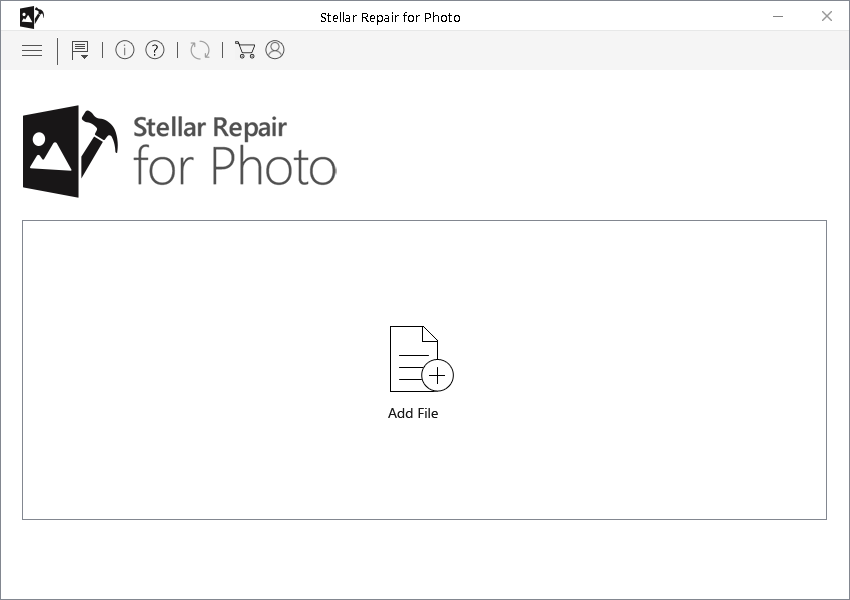
Step 1: Download, install and launch Photo Repair Tool on your computer. Click on 'Add File' to repair corrupt/damaged image files.
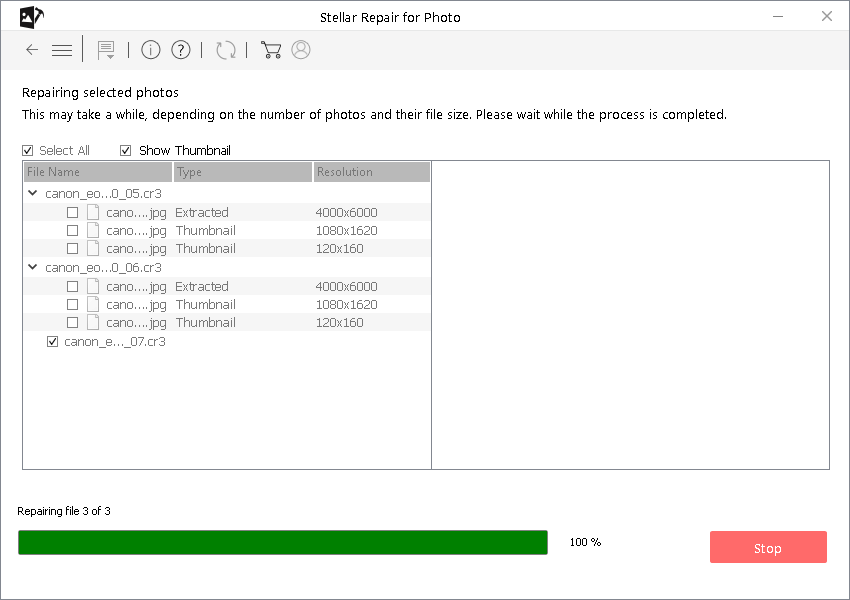
Step 2: You can then select the files for repairing. Next, click on 'Repair' to begin the repairing process.
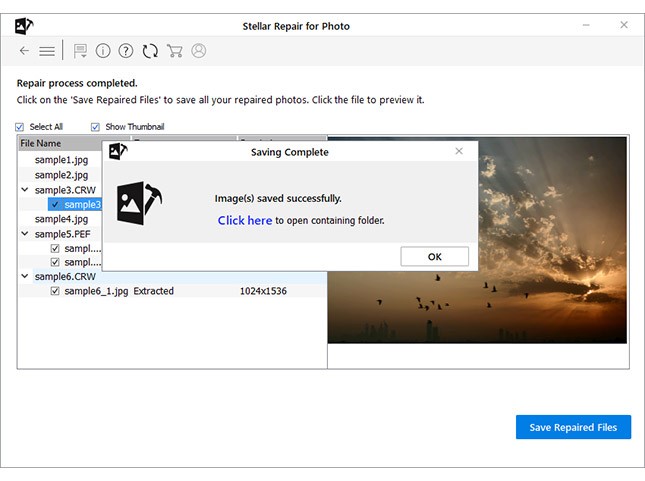
Step 3: Finally, click on 'Save' button to preview and save repaired images on your desired location on the computer.
Other Fixes To Repair BMP Files
Check out the step-by-step guide below to troubleshoot effects in a .bmp photo. These methods don’t require technical knowledge:
Fix #1: Rename the File
Before trying any complicated solutions, try renaming the file first. Renaming the BMP image file without changing its file extension can fix this issue. To do so, follow the steps:
- Navigate to the folder where the Bitmap image is stored.
- Right-click on it, then click ‘Rename‘ to rename it.
Fix #2: Open BMP Files in Another Program
If you are unable to access the BMP photos in your current image viewer app, try to open the file in some other program. You can use Adobe Illustrator, Adobe Photoshop, ACD Systems Canvas, CorelDRAW, etc to open and view the picture.
Here I will show you the steps for opening the picture in Adobe Photoshop:
- Open Adobe Photoshop.
- Click on the ‘File’ menu >> Open option.
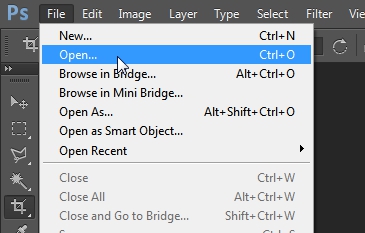
- Now, browse to the location where the image is stored and open it.
If this fix won’t work, then try the next solution to repair BMP files.
Fix #3: Convert BMP File to Another Image Format
Sometimes, it happens that the BMP image files won’t open correctly due to an incompatible format. In that situation, you can simply convert the bitmap files to other file formats using any free and secure online image converter tool.
- Go to the web browser, type Convertio to open it.
- Drag & drop your BMP photo to Convertio.
- Pick the JPG as an output format and hit Convert.
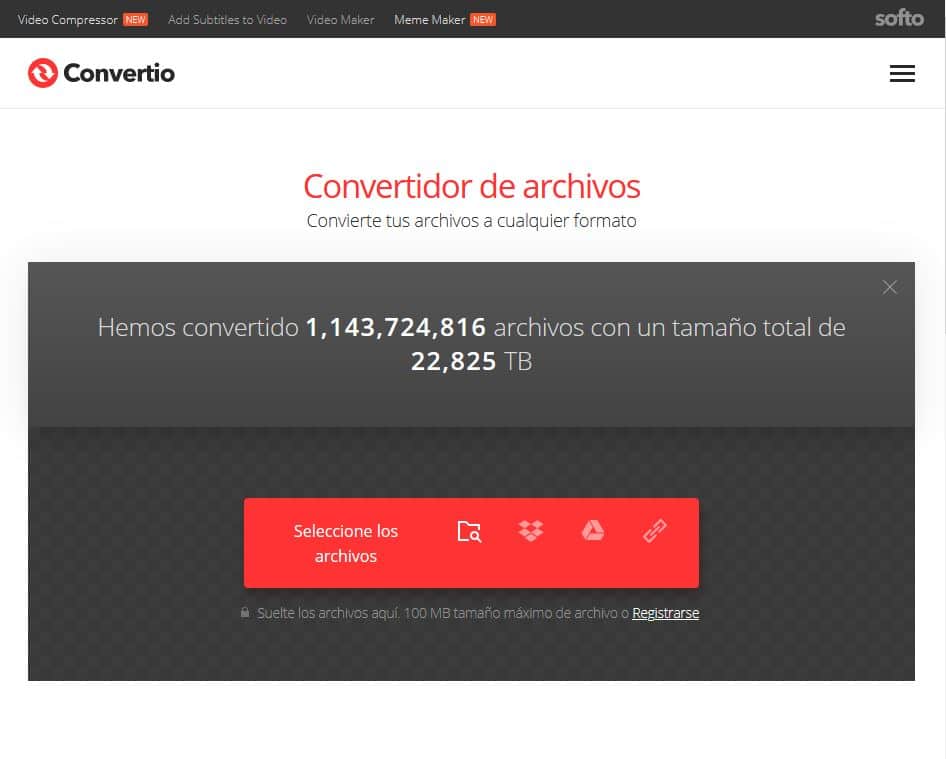
- Once the conversion is completed, click on Download option to save JPG files.
- Tap Convert again in order to convert other uploaded BMP images.
Fix #4: Run CHKDSK To Repair Corrupted BMP Files
If you are unable to access the BMP image files, you can run the CHKDSK command to make your BMP file accessible.
This command helps you to scan for bad sectors and fix BMP error that causes due to bad sectors on the storage devices. So, to fix this error, follow the steps given below:
- Make sure that you connect the storage device that contains BMP images with the system
- Now, you need to type the ‘cmd’ in the Windows Search box
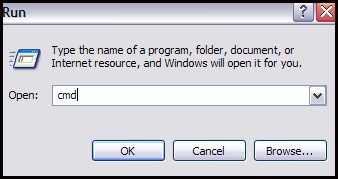
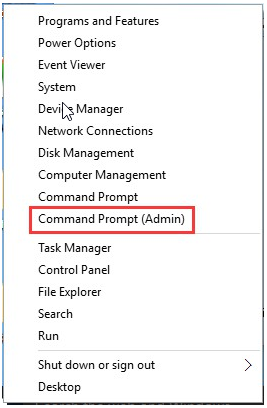
- Next, make click on the Command prompt
- Then type CHKDSK (drive letter) /r in the Command Window.
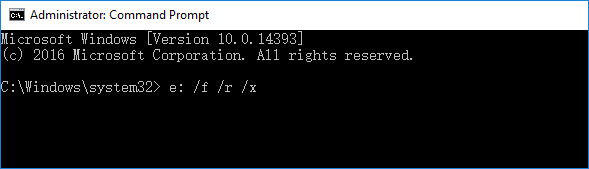
- After completing the above steps, now you have to restart your system and try to access the BMP image files.
What Are BMP Image Files?
BMP file is also known as the Bitmap Image. It is one of the image file formats that contain bitmap graphics data. It is supported by the Microsoft Windows operating system.
Bitmap file formats are commonly used on the Windows OS and other platforms which allows users to store any type of .bmp data.
However, sometimes .bmp file format gets corrupted due to various reasons. So, let’s know the most common causes below.
Is Your BMP Photo Corrupt? Here’s How You Can Avoid It
Follow the tips to avoid BMP files from becoming corrupted:
- Never take out the memory card when in use
- Install a good antivirus in the system to avoid a virus attack
- Please wait until the file transfer process is done before you unplug the storage device
- Do not click the images or record any video while showing the battery is low
- Be careful while deleting the unwanted files.
Frequently Asked Questions:
How Do I Fix A Corrupted BMP File?
You can fix corrupted BMP files by trying the below troubleshooting tricks:
- Convert BMP File To Another Image File Format
- Open BMP Files In Another Program
- Run CHKDSK To Repair Corrupted BMP Files
- Rename BMP Image File
What Programs Can Open The BMP Image Files?
A large number of images and graphics programs can be used to open the BMP files. Below I have mentioned a few programs to open the bitmap files…
- Adobe Illustrator
- Adobe Photoshop
- ACD Systems Canvas
- CorelDRAW
How Do I Fix Bitmap Image Is Not Valid?
In order to fix this is not valid Bitmap file using the below methods:
- Open BMP image in another photo viewer
- Open the photo on another PC
- Reboot the computer
- Run Antivirus
- Run Windows Troubleshooter
How Do I Convert Multiple BMP To JPG?
Follow the below easy steps to convert multiple BMP to JPG files using Convertio:
- At first, type Convertio on your web browser and open it.
- Drag & drop all the BMP photos to Convertio.
- Choose the JPG as an output format.
- Tap Convert.
- Once the conversion is completed, click on Download option to save JPG files.
- Tap Convert again in order to convert other uploaded BMP images.
Final Words
No matter whatever the reason may responsible for BMP image file corruption is, now you can repair BMP files with ease. In the above sections of this blog, you might have noticed how the BMP file format gets corrupted and how to fix volume bitmap errors.
I hope BMP File Repair Tool will surely help you to repair BMP files and allow you to access those repaired image files.
Apart from this, if you ever delete the BMP image files unintentionally then no need to worry at all, you can easily recover deleted BMP files using the backup option.
I hope you liked this post…..


Taposhi is an expert technical writer with 5+ years of experience. Her in-depth knowledge about data recovery and fascination to explore new DIY tools & technologies have helped many. She has a great interest in photography and loves to share photography tips and tricks with others.