MKV (Matroska) files are the most widely used multimedia container, although the chances of encountering file corruption are also very high. It is a kind of video file format that contains a number of videos, audio, and even subtitle streams. Moreover, .mkv files are supported by devices like cameras, mobile phones, iPods, PSP, and more. This file format may become corrupted at any time. This blog explains complete info regarding how to repair MKV files in no time with less effort.
Free Video Repair Tool.
Repair damaged, choppy, jerky, grainy, and other video issues without losing its original quality easily. Try now!
What Causes Corruption in MKV Files?
Sometimes the MKV video files get corrupted due to some unexpected reasons. Here learn some of them.
- Due to the loss of internet connectivity while downloading the MKV video file
- Corruption in MKV files can be a cause of broken header
- Inappropriate read or write process
- Files downloaded through unreliable internet resources may not play
- Unexpected power loss while playing the media file in VLC
- Due to compression issues, the MKV video files get corrupted or damaged.
You May Also Read: 10 Ways To Fix “MKV File Not Playing In VLC” [2021]
(Recommended) How To Fix Corrupt MKV Files?
As discussed above the MKV File Repair Tool is capable to repair MKV files, so just feel free to use this tool for the best MKV file repair solution.
Also help you to repair the major video file formats like FLV, WEBM, MPEG, AVCHD, MTS, AVI, MOV, MP4, 3G2, 3GP, etc. on Windows & Mac.
Know what more this video repair tool offers:
- Repairs MKV files that have become corrupted or damaged due to some uncertain conditions
- Repairs MKV file, which has already been infected with a virus
- Also repairs other file formats like FLV, MPEG, AVCHD, MTS, AVI, MOV, MP4, 3G2, 3GP, etc
- Preview of repaired MKV files before you proceed to save it in the preferred folder
- Trusted and 100% safe & secure to use
- Easy-to-use interface.
It is easy to use and is available in different versions of Windows and Mac OS X. This MKV repair tool ensures the guaranteed repair of corrupt video files and is an effective solution to bring the corrupted files into the working format.


* Free version of this program only previews repaired videos.
Let’s look at the steps for MKV file repair.…..
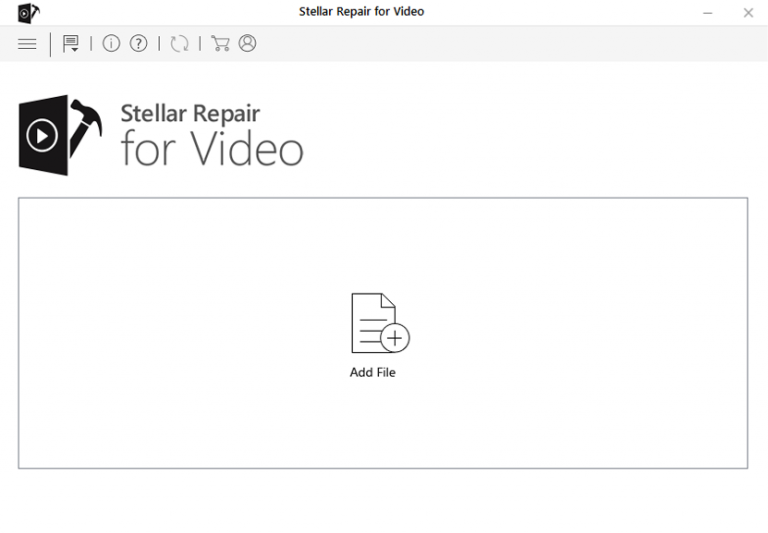
Step 1: Download, install and launch Video Repair software on your system. Click on 'Add Files' to add corrupted video files.
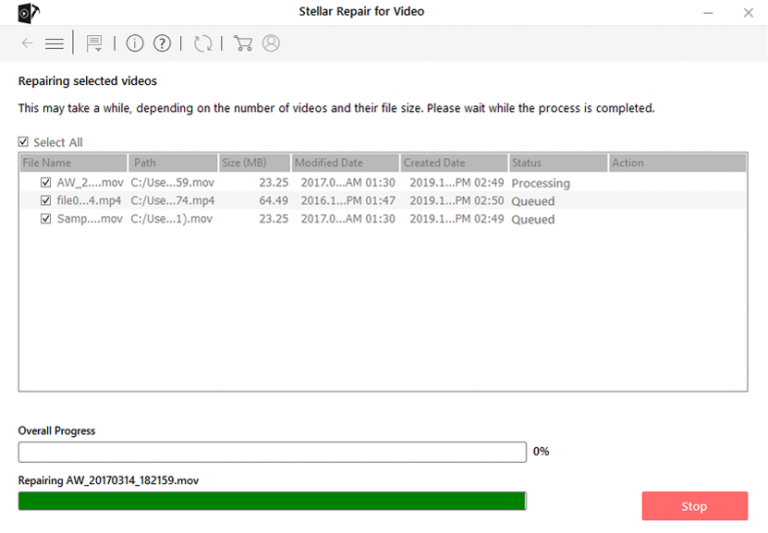
Step 2: Click on 'Repair' button to begin the repairing process. This start repairing your added video files one by one.
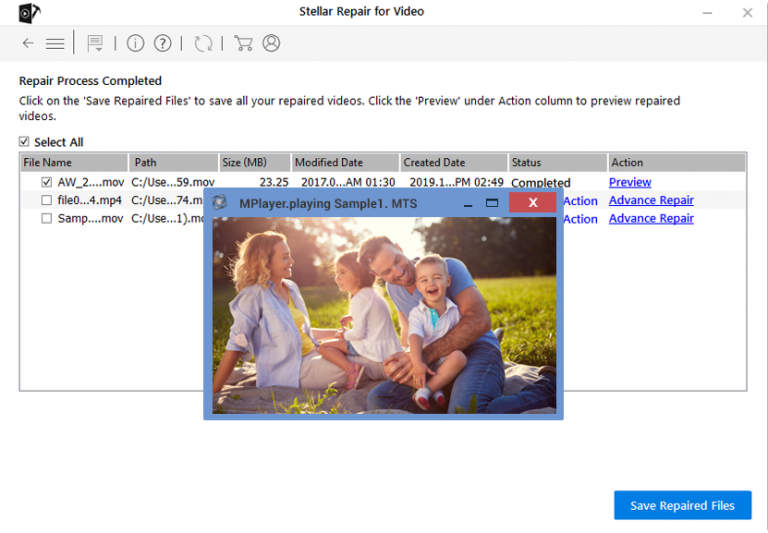
Step 3: You can click on 'Preview', in order to preview the repaired video file within the software and click on 'Save Repaired Files' button to save the repaired videos at desired location.
How To Fix MKV Files With Alternatives?
Quick Fixes:
- Fix Corrupted Video Files With VLC
- Run Chkdsk to Repair MKV Videos
- Redownload The Source MKV Compatible or MKV Files Codec
- Using FFmpeg
- Convert MKV to Another Video Format
- Use MKV Repair Tool
Method #1: Fix Corrupted Video Files With VLC
Just follow the given below steps to repair damaged MKV video file:
- Start the VLC Player.
- After that, go to the Media, now choose the Convert or Save.
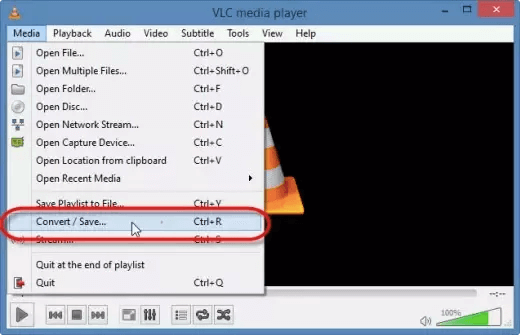
- Then, add input files/streams that require to be transcoded, then click on Convert or Save.
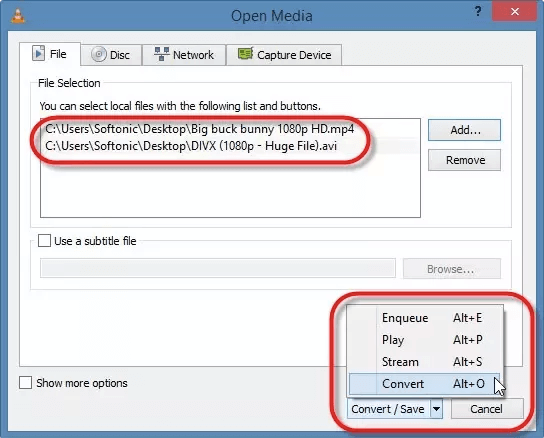
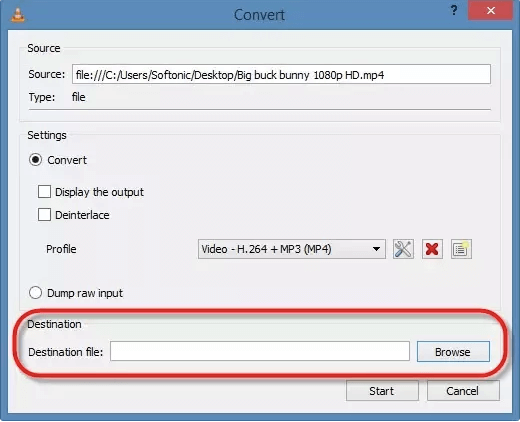
- Next, Convert window that shows, then provide a file name for the destination file.
- Choose the desired input Codec from the profile list.
- Now, click on “Edit Selected Profile” to check specified profile settings.
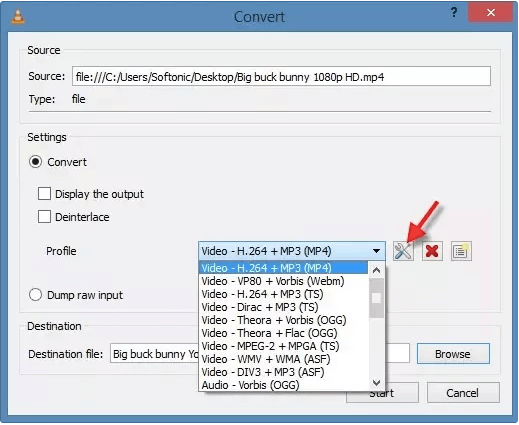
- After that, you’ve to choose to add a new profile, delete any existing profile.
- Next, press the
- After that, you’ve to choose Preferences in order to enter the preferences panel to make changes and fix corrupted MKV files.
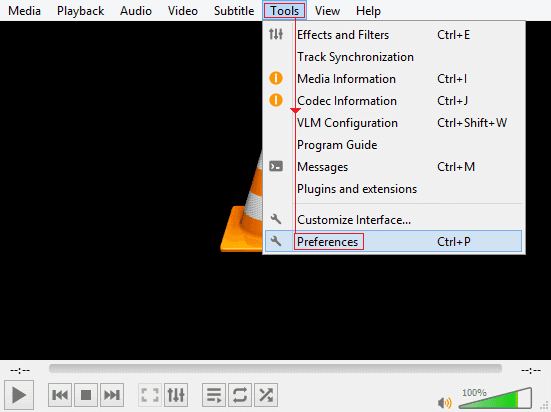
- Next, you have to make a click on Input or Codecs.

- Choose the option Always Fix and then Save to repair MKV files.
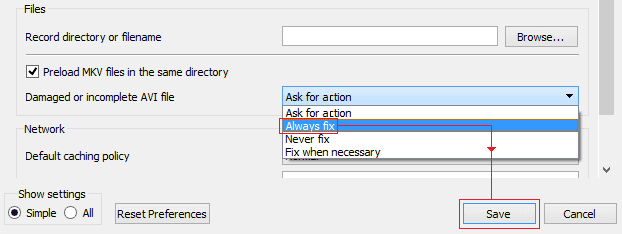
- Lastly, you can then play the fixed MKV video files by the VLC player. After knowing and applying the method for how to repair corrupted MKV video files, you simply right-click on the AVI file that has already been fixed using this method. Next, you have to just choose ‘Open with’ and then watch with VLC media player.
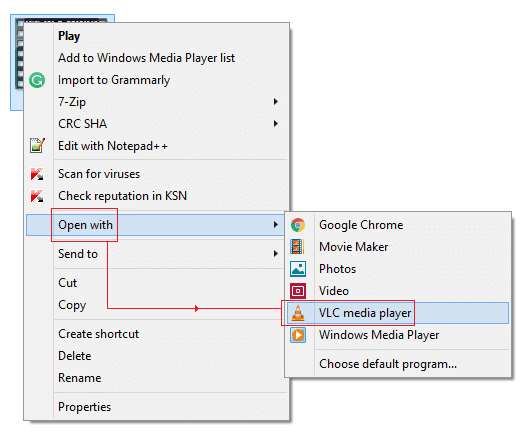
After completion of all these steps, check whether your MKV video file is repaired or not. If not, then go through with the next solution.
Method #2: Run Chkdsk To Repair MKV Videos
CHKDSK is a good scanner for storage devices. This command is used to prevent MKV file corruption. When it scans the device, and if found the bad sector issue, then check out the solution to repair the bad sector on SD card or other storage media.
So, to repair MKV files, follow the instructions below to run the CHKDSK scan:
- First of all, open the Command Prompt in the window
- Now, make sure that the corrupt driver is joined to the system
- After that, Assign a new letter to the corrupt drive
- Next, you’ve to type the chkdsk /r /f X: where X is the new drive letter. Replace the alphabet X with a corrupt drive letter, then simply hit the ‘Enter button.
- You have to wait for a few seconds to finish the process, then restart your system to check whether if the drive is accessible or not.
Method #3: Redownload The Source MKV Compatible Or MKV Files Codec
If you have downloaded the MKV video from the internet, then it might be possible that the MKV video has not been downloaded completely. Several causes exist that cause the MKV file to become broken, corrupted or damaged.
Sometimes it happens while downloading, there is some accidental process termination before you finish the tasks. Here, the first step is to check if your source MKV video file is not corrupted or broken by the transferring process.
If you find a broken MKV file, then you have to go back to the source website and then simply click on the downloading link to proceed further to redownload the MKV file.
So, to avoid damaged, broken or corrupted MKV file, you can redownload the source MKV compatible or MKV file codec.
Or, another option to repair damaged MKV file is to try a VLC media player or Leawo Blu-ray Player with embodied MKV compatible codecs.
Alternatively, you can grab the compatible codecs online and try to put them into the current player tool like Windows Media Player to support the unplayable MKV video files.

Method #4: Using FFmpeg
Another quick resolution you can try to fix MKV files is to use FFmpeg command-line processing. It helps to re-index streams and rebuilds metadata. Moreover, FFmpeg handles large video files effectively.
Therefore, it suits experienced users seeking precision.
Method #5: Convert MKV to Another Video Format
Converting the .mkv file to other video formats like AVI, WMV, MP4, FLV, etc. helps to make the videos playable. You can try both online and offline video converter tools to convert your files.
Here, I will suggest you try the VLC multimedia player to get your job done:
- Initially, open the VLC Player.
- After that, click on the Media button >> Convert/Save.
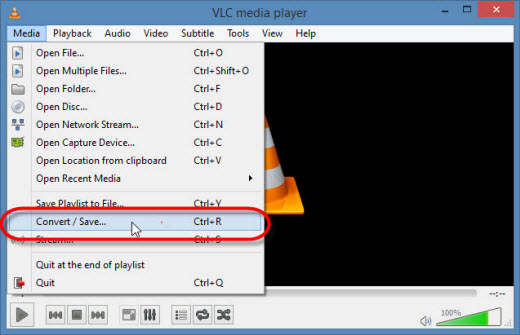
- Then, use Add button to add what you require to convert…
- Next, choose output format (MP4) from the appearing Profile.
- Click Browse to choose the Destination file & to provide a file name.
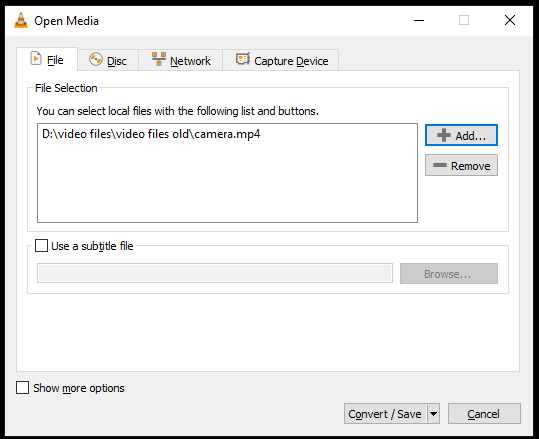
- Finally, click on the Start to complete your file conversion process.
Additional Tips To Avoid MKV File Corruption:
By following the below tips you can prevent further MKV or other video file corruption:
- Format your external storage media from time to time in order to remove bad sectors that have built up on it.
- Be careful while converting your MKV files into other video formats. Do not use the inferior video converter tool for this process.
- Try to save your MKV videos on two different storage devices as a form of backup. In the absence of backup, you can use a video repair tool.
Free Video Repair Tool.
Repair damaged, choppy, jerky, grainy, and other video issues without losing its original quality easily. Try now!
Unique FAQs:
How Can I Repair MKV Files for Free?
Meteorite and VLC player are the two best ways that can help you to fix MKV files for free.
Why Does VLC Not Play MKV?
There could be several causes that can lead to VLC not playing MKV file. Some of them are- missing codecs, hardware decoding, missing components, corrupted MKV video files, incorrect video/audio codec settings in the VLC, etc.
How to Restore an MKV File?
You can restore an MKV file via backup folder or using the best video recovery tool mentioned above in this post.
Does Converting MKV To MP4 Lose Quality?
No, converting the MKV to MP4 will not lose the video quality. However, to change a container from the MKV format to MP4, you don't require encoding anything; you simply change a ‘wrapping’ around a video. Doing so will doesn't lose the video quality and be much faster process.
Why Does My MKV File Have No Video?
Most of the times, it happens that you can hear the sound when playing video file but can’t see the video. This might happen due to lack of supported MKV codec on your computer. In such a situation, you need to install the proper video codec for your MKV files on a system.
Final Verdict
So, it’s time to conclude…
Repairing MKV files helps to stream videos flawlessly & restores valuable content. Well, above I have specified both the manual and automatic solutions to tackle this situation. Moreover, multiple methods fit different needs. But for an instant fix, try the MKV File Repair Tool.
Ultimately, repaired MKV files deliver seamless playback experiences.


Taposhi is an expert technical writer with 5+ years of experience. Her in-depth knowledge about data recovery and fascination to explore new DIY tools & technologies have helped many. She has a great interest in photography and loves to share photography tips and tricks with others.