Stuck with the peculiar “error loading operating system” during Windows PC or laptop startup? It usually happens when the computer cannot read boot files. As a result, the operating system fails to load correctly. Thus, if you are facing the same error, do not fret.
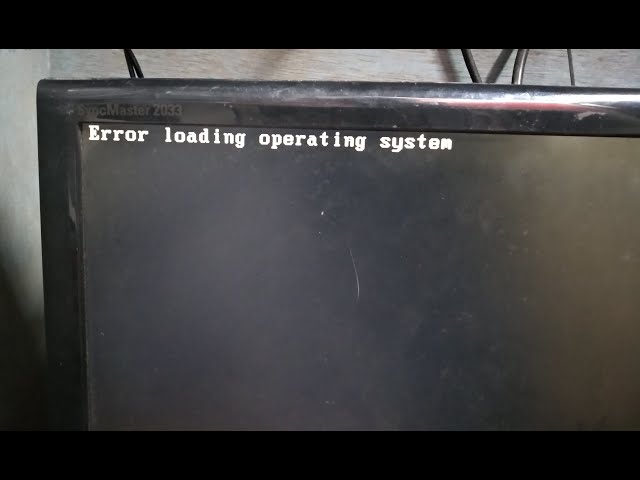
This blog describes the best solutions on how to fix error loading operating system to recover your data & restore your device.
Free Hard Drive Data Recovery Tool.
Recover data from USB drives, Pen drives, SSDs, HDDs, and other devices on Windows. Try now!
What Causes Error Loading in the Operating System?
Well, the error loading message feels alarming initially. However, there are various reasons behind getting this error. So, let’s see the most common ones:
- Due to a corrupted BIOS
- Incompatible OS
- BIOS does not support PC hard drive’s size
- Damaged hard disk or MBR
- Set the incorrect disk as a bootable drive to load the operating.
Thus, identifying the exact cause saves time.
How to Fix the Error Loading Operating System?
If you really want to fix this warning message, apply the following step-by-step approaches:
Way 1- Run Command Prompt
If you suspect that the error is triggered due to disk-related problems, you should run the chkdsk command to fix it. This utility will eventually check and fix the issue ASAP.
Follow the steps below to do so:
- Press the Windowskeys >> type cmd in the search bar.
- Right-click on ‘Command Prompt’ >> choose ‘Run as administrator’.
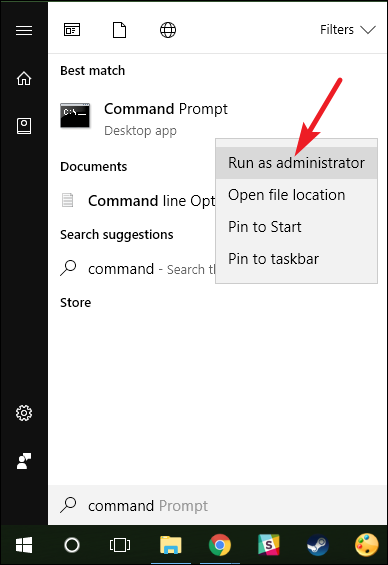
- Simply, click ‘Yes’ to open the Command Prompt as Administrator.
- Under a new Command Promptwindow, type the following command:
chkdsk E: /f /r /x
Here, replace E with the drive letter you are using.
Also Read: [7 Easy Ways] The Volume Does Not Contain A Recognized File System
Way 2- Update BIOS Using UEFI Setup
Updating the BIOS is another working solution to troubleshoot the error loading operating system windows 10/11. Running an outdated BIOS can lead to this error.
Steps to be followed:
- Firstly, detect your motherboard model.
- Then, visit the website of the motherboard manufacturer>> download the up-to-date BIOS update.
- After that, connect the empty USB flash drive.
- Add the stuffs of the downloaded BIOS to a USB drive.
- Join the drive to the computer that needs repair.
- Now, continuously press the exact key (usually Delete, F1, F2, F10, or Esc) to access a BIOS.
- Next, set to boot from a USB after accessing the BIOS.
- Choose a BIOS file from a USB drive.
- Finally, confirm the pop-up when BIOS prompts.
- Your BIOS will be updated now.
Way 3- Repair MBR (Master Boot Record)
As already mentioned above damaged MBR is the major factor for causing this annoying message in Windows PC. So, to tackle this situation, it is important to repair the Master Boot Record.
Here are the instructions to follow carefully:
- Boot your PC from an installation media.
- Select a Repair option just after choosing language preferences.
- Go to the Troubleshoot >> Advanced options.
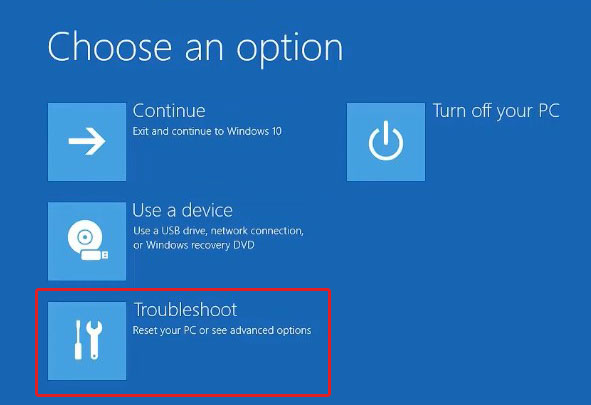
- Choose the Command Prompt.
- Put the below commands:
bootrec /fixmbrbootrec /fixbootbootrec /scanosbootrec /rebuildbcd
- Now, remove a bootable media & reboot your PC.
Way 4- How to Fix Error Loading Operating System by Performing Startup Repair
Well, Windows Startup Repair is an excellent tool that can deal with the system bootable errors caused by missing/corrupted system files. Many users have found this method useful in their cases to solve this error. So, you should also try it.
Follow the guide below:
- Connect Windows installation media USB to your Computer & restart.
- Go to the “Repair your computer” >> click on “Troubleshoot > Advanced options.
- Choose “Startup Repair“.
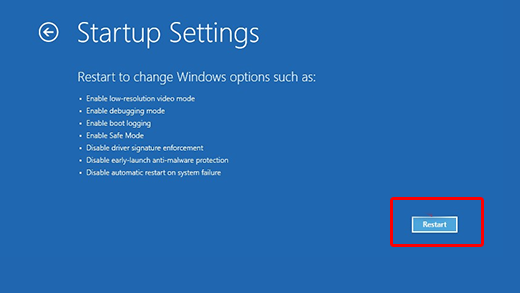
- Now, restart the PC once the process is over.
If this fails, go with the next method.
Also Read: Fix Non System Or Disk Error On PC/Laptops
Way 5- Update Device Driver
Loading operating system stuck? Let’s try updating your disk drivers and tackle this situation easily.
Follow the steps:
- Connect the USB flash drive to your computer & go to This PC and right-click on it.
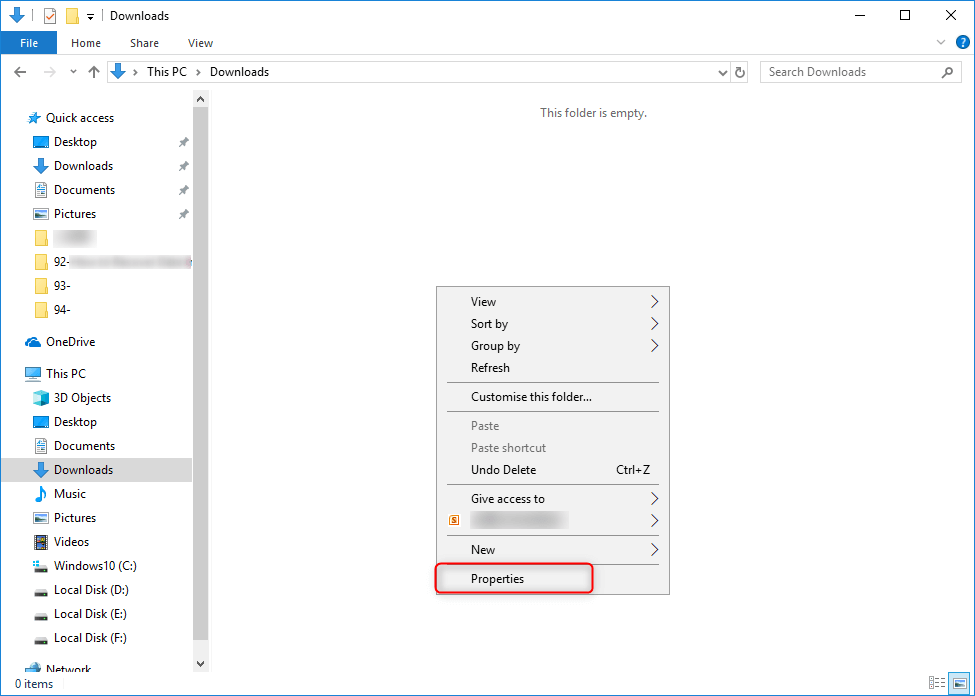
- After that, choose Properties > Device Manager.
- Then, expand the Disk drives
- Locate the problematic disk and right-click on it >> click Update driver.

And you are done!
Recover Data from USB Drive After Fixing “Error Loading Operating System”
If you can’t access your USB device data or it becomes inaccessible, try the USB Drive Data Recovery Tool. This software can help you to regain all the data from an external storage media after fixing the error.
In addition, it scans a drive deeply to locate the corrupted or lost & recover them effectively. It supports both Windows & Mac OS.
emid emid
emid
* Free version of the program only scans and previews recoverable items.
Here are the easy steps how you can follow this software.
Frequently Asked Questions:
Loading errors mainly caused by various factors such as incorrect device settings, firewall or antivirus problems, network issues, etc.
You can fix a corrupted operating system by running the Command Prompt. Simply search cmd in a search bar to open the Command Prompt as an administrator. Now, type sfc /scannow in the opened Window and hit Enter. Wait for the process to complete & restart your device.
If PC is stuck on startup, you can do the following things:
If your PC is not loading the operating system, you should check with the manufacturer of your device. What Causes a Loading Error?
How Do I Fix a Corrupted Operating System?
What to Do If PC Is Stuck on Startup?
What Should You Do If Your PC Is Not Loading the Operating System?
Also Read: [Fixed] The File is Too Large for The Destination File System!
Time to Conclude
So, these are some of the forthright methods to resolve how to solve error loading operating system on a Windows PC. All the resolutions specified above are easy to use & will surely help your system boot smoothly again.
That’s all…
References –

Taposhi is an expert technical writer with 5+ years of experience. Her in-depth knowledge about data recovery and fascination to explore new DIY tools & technologies have helped many. She has a great interest in photography and loves to share photography tips and tricks with others.