Stuck with the error “The media playback was aborted due to a corruption problem or because the media used features your browser did not support.” when streaming online videos? If yes, do not fret, you are in the correct place.
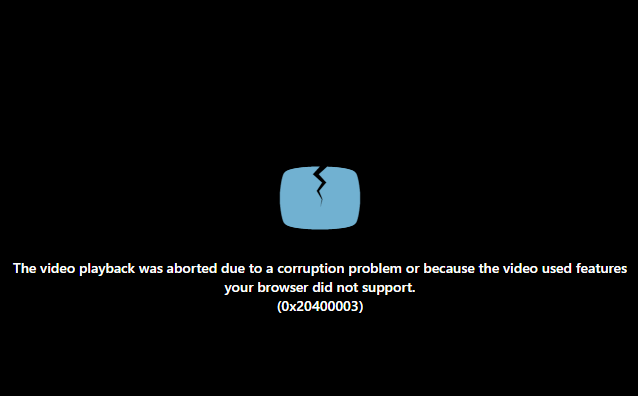
Well, this warning appears in Google Chrome, Firefox, or another web browser. Moreover, it affects streaming, downloads, and embedded media. Fortunately, it can be fixed by applying some quick solutions. All the possible ways are mentioned in this post.
To fix a corrupted video footage, we recommend this tool:
This software will repair flickery, stuttery, jerky, unplayable videos and supports all popular video formats. Now repair your corrupt and broken videos in 3 easy steps:
- Try this Video Repair Tool rated Great on Pcmag.com.
- Click Add File to add the video you want to repair.
- Select Repair to start the repair process and save the repaired video on the desired location after the repair is done.
What Causes Playback Was Aborted Error?
Well, the error message may occur due to several reasons. Some of the major causes are mentioned below. They are:
- Poor internet connection.
- Browser incompatibility or temp glitches.
- Website plugins or conflicting extensions block media scripts.
- Cached data or cookies of the browser are interfering with playback
- Due to a corrupted video file or unsupported formats
- Outdated web browser versions also fail modern codecs.
Methods to Solve Error “The Media Playback Was Aborted Due To a Corruption Problem”
If you are experiencing the media playback was aborted error or any other video playback issues in your web browser, just go through the methods:
Method 1- Restart Your Browser
The first technique I would like to suggest is to restart your browser. I know it is an overrated resolution, but most of the time it can resolve stuck on loading or other video-related glitches.
Method 2- Check the Internet Connection
As we all know, streaming online videos depends on consistent bandwidth delivery. If you’re watching the movie in your browser and are stuck with this error, it may be due to a slow internet connection. Henceforth, to solve this problem, you need to check your internet speed and restart your router to refresh signals.
Also Read– Fixed- Sorry, The Video Player Failed to Load.(Error Code 101102)!
Method 3- Try Video Repair Tool
If you are experiencing “the media playback was aborted due to a corruption problem” error due to video corruption, you can use our professional Video Repair Tool. It not only repairs corrupted videos but also fixes broken or unplayable movie files.
It supports video formats such as MOV, MKV, 3GP, M4V, AVI, FLV, WMV, MPEG, AVCHD, 3GP, etc.


* Free version of this program only previews repaired videos.
So, just quickly download this software on your Windows/Mac PC and follow the steps to know how it works.
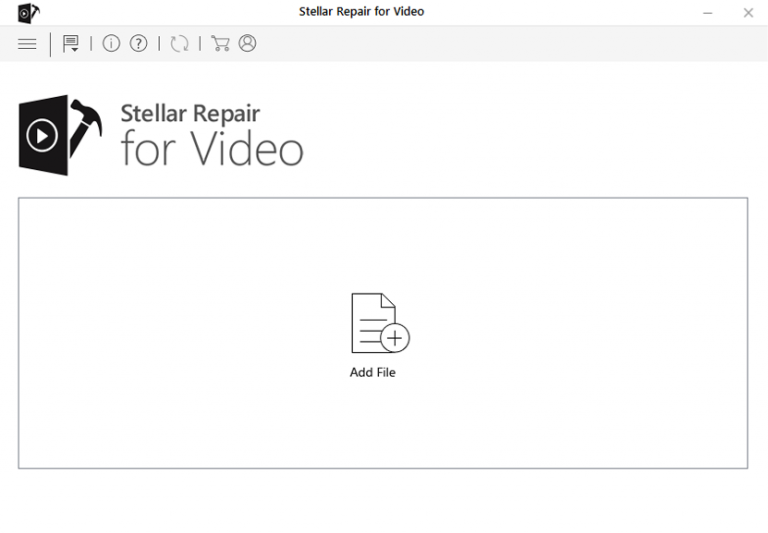
Step 1: Download, install and launch Video Repair software on your system. Click on 'Add Files' to add corrupted video files.
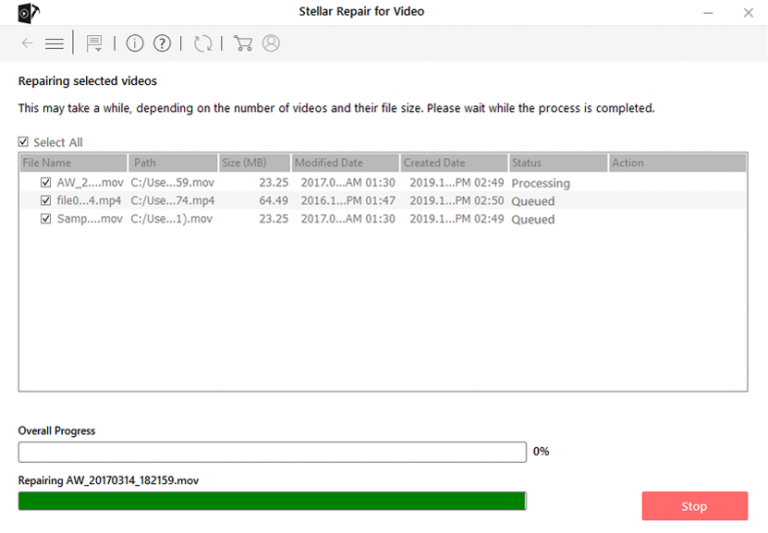
Step 2: Click on 'Repair' button to begin the repairing process. This start repairing your added video files one by one.
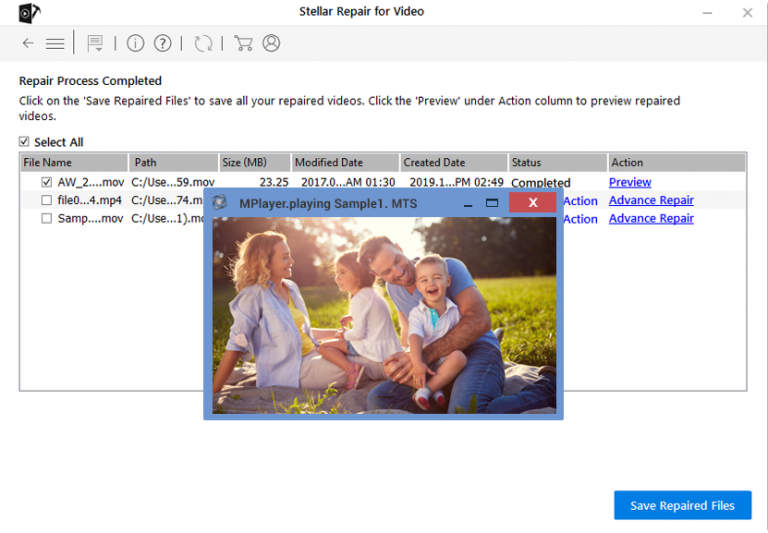
Step 3: You can click on 'Preview', in order to preview the repaired video file within the software and click on 'Save Repaired Files' button to save the repaired videos at desired location.
Method 4- Clear Cache & Cookies of Web Browser
Clearing the cache and cookies of the browser is an excellent method that fixes website loading errors, frees up storage, improves performance by deleting old data, etc., basically giving your browser a “fresh start”. So, let’s try this way and get rid of the error.
For Chrome Users:
- Open Chrome >> click Menu button >> Clear browsing data.
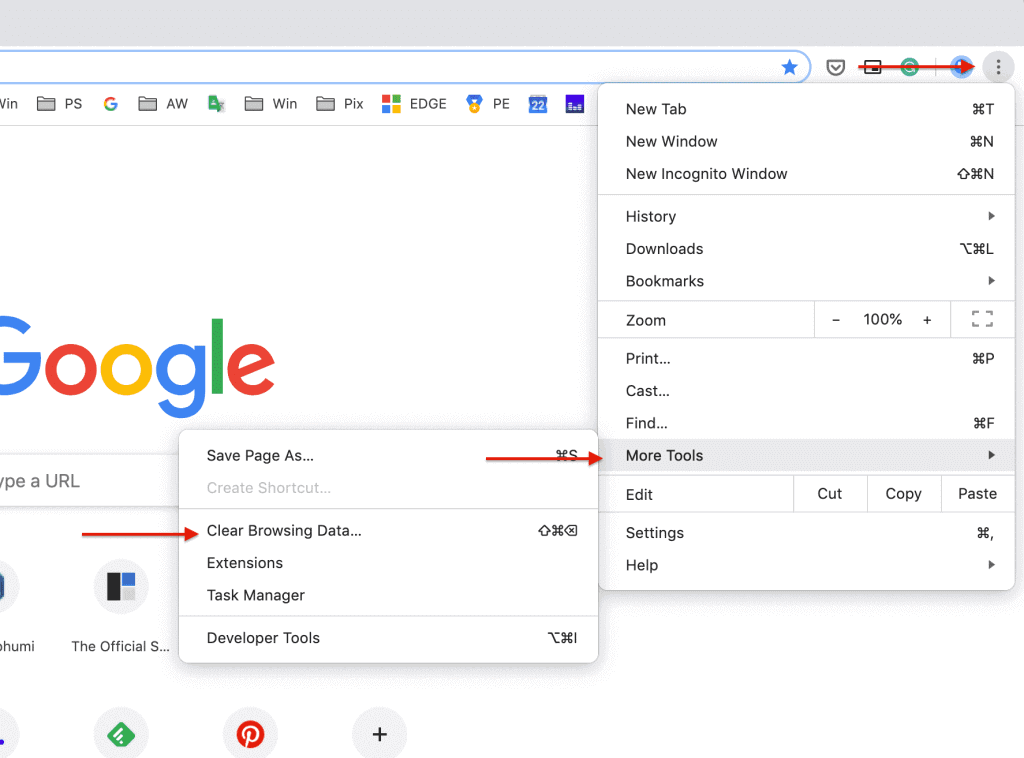
- Now, set a Time range to the “All time” >> choose the Clear data button.
For Firefox Users:
- Open Firefox >> go to the Settings >> privacy & security.

- Next, scroll down to the cookies & site data sector >> click Clear Data.
- Pick cookies & cached data >> click Clear >> Clear Now to confirm.
For Safari (Mac) Users:
- Open Safari menu >> select Preferences.
- Click Privacy tab, then Remove All the Website Data
- Now, click Remove Now to confirm it.
You are done!
Method 5- Disable Browser Extensions
Extensions enhance the browsing experience but create conflicts, too. To overcome such hectic situations, it is a wise decision to disable conflicting extensions.
Steps to be followed to disable extensions.
For Chrome:
- Open a Chrome >> click on 3 dots (Menu).
- Then, choose “More Tools”.
- Scroll down & Find “Extensions”.

- Now, toggle off extensions that aren’t needed or simply remove the unwanted extensions.
For Firefox:
- Open a Firefox >> go to 3 lines menu button.

- Then, click Add-ons & Themes >> Extensions.
- Now, scroll a list of the extensions.
- After that, click on a toggle bar for an extension to disable it.
For Safari (Mac):
- Launch Safari >> go to Menu >> select Preferences.
- Go to Extensions.
- Now, uncheck a checkbox next to the extensions to disable.
Also Read: [7 Fixes] This Video File Cannot Be Played Error Code 224002
Method 6- Fix The Media Playback Was Aborted Due To a Corruption Problem by Updating Browser
Running an outdated version of a web browser can even lead to this video playback error. Simply get the latest version of the browser to get rid of the current problem.
For Google Chrome:
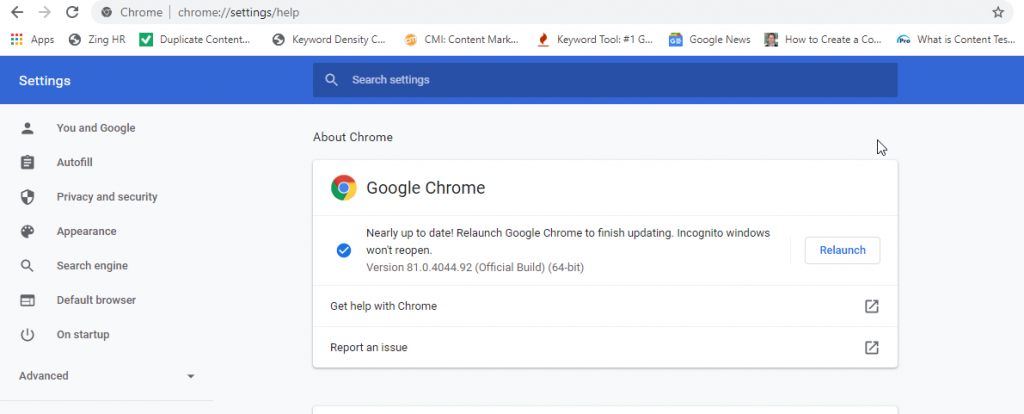
- Open Chrome >> click three dots menu.
- Click on Help >>About a Google Chrome
- Now, you’ll get “Update a Google Chrome” and click Update option if available.
For Mozilla Firefox:
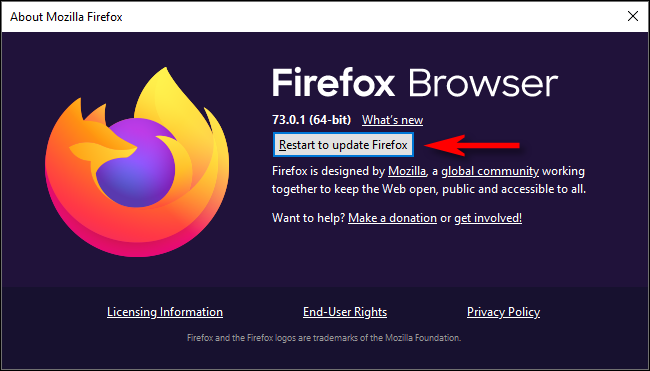
- Open Firefox, go to the menu >> Help>> About Firefox.
- When the About Firefox window opens, the browser will start checking for updates & download them.
- Finally, click on “Restart to update the Firefox”.
Restart the browser after installation completes.
Method 7- Download the Video to Avoid Streaming Errors
Streaming failures sometimes persist online. Instead, downloading avoids buffer corruption. All you need to do is download the video that you are trying to play in the browser, then play the file locally using VLC. This will eventually solve the “the media playback was aborted due to a corruption problem or because the media used features” error for you.
Frequently Asked Questions:
To fix Chrome video playback issues, try the below tips:
Your Safari may have improper web pages, an outdated operating system, or corrupted caches, stopping you from steaming videos.
You can fix YouTube playback issues in Firefox by refreshing the webpage, clearing cached data, and signing in again to YouTube to test playback again. How Do I Fix Chrome Video Playback Issues?
Why Is Safari Not Allowing Videos to Play?
How to Fix YouTube Playback Issues in Mozilla Firefox?
To Summing Up
Well, I am sure by implementing the techniques mentioned above in this post, you will be able to fix the media playback was aborted due to a corruption problem in Chrome or other web browsers easily. Nevertheless, the best method you can try is to use the Video Repair tool for smooth streaming.
That’s all…
References:
- https://support.mozilla.org/en-US/questions/1058608
- https://learn.microsoft.com/en-us/answers/questions/2380036/media-player


Taposhi is an expert technical writer with 5+ years of experience. Her in-depth knowledge about data recovery and fascination to explore new DIY tools & technologies have helped many. She has a great interest in photography and loves to share photography tips and tricks with others.